In this article I will be talking about my experience with vim.
NOTE: This is not a tutorial for vim.
VSCode is good#
This might come as a bit of a surprise to some people because, more often than not, people who advocate for vim don’t have good things to say about VSCode. But I think VSCode is an amazing tool, especially for beginner programmers.
Imagine you are a new programmer and know nothing about code editors, auto-completion, LSPs, or plugins. At this point, your priority is not to learn about vim motions, LSPs, etc. You just want to hit the ground running and start writing some code. VSCode is a very good tool for that. You just install it, add a few plugins, and start coding - no overhead.
Vim is just better#
Vim is what you use when you want to customize your coding experience. Let’s break it down:
Vim motions#
Let’s face it, coding can get pretty tedious. Vim keeps it fun. Moving around your editor without ever touching the mouse feels pretty awesome. This is what makes vim so incredible to use. If you don’t ever want to use vim, I would still suggest you try Vim motions. You can even use them in VSCode. Just try it for fun. I bet you’ll like it.
Customization#
In Vim, you can customize everything, and I mean everything. Now, I get that there are
customizations available for VSCode as well, but vim can do so much more. You can opt out
of features that you do not like, which is not possible in VSCode. Just pick what you
like and remove all the bloat. Personally, I don’t like the virtual text that appears
beside the code when you have an error/warning. It looks like this: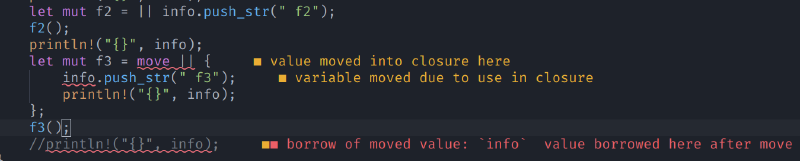
vim.diagnostic.config({
	virtual_text = false,
	signs = true,
	severity_sort = true,
})

vim.cmd([[
    sign define DiagnosticSignError text=! texthl=DiagnosticSignError linehl= numhl=
    sign define DiagnosticSignWarn text=⚠ texthl=DiagnosticSignWarn linehl= numhl=
    sign define DiagnosticSignHint text=💡 texthl=DiagnosticSignHint linehl= numhl=
    sign define DiagnosticSignInfo text=ℹ texthl=DiagnosticSignInfo linehl= numhl=
]])
Now, instead of virtual text taking up all the screen space, I just get these nice signs: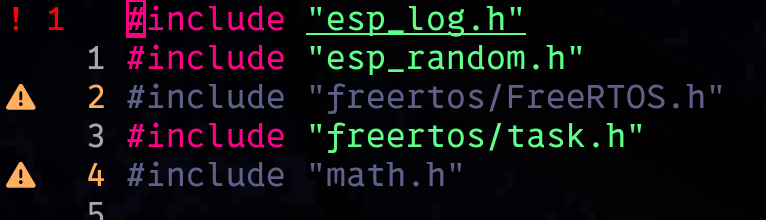
My Vim configuration#
I use a newer version of Vim called Neovim. You can customize it using this amazing language called Lua. It’s easy to learn, pretty powerful, and totally awesome. Now, I am not going to ramble on about how I configured my vim; that is not the goal of this article. You can check out my latest configuration here: https://github.com/codetit4n/nvim-config
Conclusions#
I am still learning vim, and I am not an expert by any means. I will try to update this article as I learn more about vim. But I can say this: Working with Vim makes you feel like a coding ninja. Just try it!